
1Welcome to Nexus
What Nexus does, the screens it runs on, and what you need to have ready. Read this first if you have never seen Nexus before.
What Nexus does
Nexus listens to the conversation in a room and turns it into a live map of what is being discussed, shown on the big screen as it happens.
A laptop near the speakers captures the room's audio. Every few seconds the audio is turned into text and the audio itself is thrown away. From that text Nexus picks out the topics being discussed and puts them on the board. The more a topic is talked about, voted on and commented on, the bigger it grows.
The audience joins from their own phones by scanning a QR code. No app and no account. They can vote on topics, comment, ask questions and put their own topics on the board. When the speakers then talk about a topic the room proposed, everyone sees it get picked up.
After the event, Nexus reads the whole transcript and writes it up: a one-page summary, a take-home document you can hand out, and a recap you can email to the people who came.
The screens at a glance
An event runs across a few screens. Each has its own web address, built from the event's four-character session code (for example 37HC). You find every one of them in the event's console.
- Console
- Your control room for one event: set-up, guests, links, moderation and ending the session.
/console/CODE. Needs you to be signed in. - Capture
- Runs on the laptop in the room. This is what listens: through the microphone near the speakers and, for a web call or hybrid event, the computer's own audio too.
/capture/CODE. - Stage (the big screen)
- The live board, shown on the projector.
/stage/CODE. No sign-in needed. - Audience phones
- What people see when they scan the QR code.
/s/CODE. - Presenter view
- For the host or moderator: questions from the room, the agenda and corrections to the board.
/present/CODE. - Recap page
- Everything the room said, voted on and asked for, after the event.
/harvest/CODE.
What you need on the day
- A laptop with a microphone for capture, placed near the speakers and plugged in. A separate USB or conference microphone gives better results than a laptop's built-in one in a big room.
- A projector or big screen showing the stage page. It can be driven by the same laptop or a second computer.
- Wi-Fi or a network connection for the capture laptop. Short drop-outs are fine: audio is queued and sent when the connection comes back.
- The QR code on the big screen, and ideally printed on table cards too, so people can join even if the screen changes.
- Optionally, a second device for whoever runs the presenter view (a laptop or tablet).
Words you will see
- Session code
- The four-character code that identifies an event, such as
37HC. It is on the big screen and inside every link. - Topic
- A subject the room is talking about, shown as a bubble (or a block) on the board.
- Supporting topic
- A topic so close to another that Nexus links it underneath the main one. Its votes and comments count towards the main topic.
- Theme
- A group of related topics. Themes become the columns of the Marimekko view.
- Proposal
- A topic an audience member put on the board from their phone.
- Picked up
- A proposal the speakers went on to talk about.
- Agenda
- The topics you planned in advance. They show in the agenda panel on the big screen, and the presenter marks each one as it is covered.
- Insights
- Statistics, open questions, people, challenges and opportunities Nexus picks out of the conversation. Hidden until the presenter reveals them.
- Actions
- Things the room can sign up to help with, created by the presenter.
- Draft, live, ended
- An event is a draft until capture starts, live while it runs, and ended once you end the session.
- Quick session
- A live room with no set-up: no guest list and no emails. Nexus names it afterwards.
- Scheduled event
- A planned event with a date, a registration page, a guest list and a recap to send.
2Getting started
How to try Nexus, run your first session without an account, and set up your organisation.
Try the demo first
The quickest way to see Nexus is the demo. It plays a scripted conversation entirely in your browser, with no microphone, no account and nothing saved.
- Go to
meet-nexus.com/start. - Choose
Open stage boardto see the big screen, andAudience phonein another window (or on your phone) to join as an audience member. - Vote on a topic from the phone window and watch its bubble grow on the stage window.
You can also open the demo board directly from the home page with See a live board.
Your free first session (no account)
You can run one real event, in your own room, before you create an account. It includes the live board on the big screen, the audience joining by QR, and the presenter view with the agenda.
- On the home page (or
/start), fill inYour name,Your emailandWhat's the event called?. The event name goes on the big screen. - Press
Start my free session. You land in the event's console. - We email you a link back to the event. Keep it: it is how you get back to the event, and how you claim it later.
Claiming it. When you're ready, press Sign up & claim it in the console. Signing up is free. The event and its transcript move into your new organisation, and its AI write-up, take-home document and recap page are unlocked.
Each email address gets one free session. If your email already has a Nexus account, sign in instead and set the event up from your dashboard.
Setting up your organisation
Everything in Nexus belongs to an organisation: your company, team or events business. Setting one up is free.
- Go to
Sign up free(top right of any page). - Either press
Continue with Google, or fill inYour name,Organisation,Work emailand aPassword. - Tick
I agree to the terms and the privacy policy. The box about product news is optional. - Press
Create my organisation. You land on your dashboard and can set events up straight away. - If you signed up with an email and password, open the welcome email and press
Confirm my email address. Until you do, events can be set up but capture won't start (the console says so, withSend the link again). Google sign-ups are confirmed already.
Passwords need at least 10 characters. Nexus also refuses a password that has appeared in known data breaches, and says so, so you can choose another.
Signing in and resetting your password
Sign in at Log in with Google or with your email and password. You arrive at your events.
- Forgotten your password? On the sign-in page choose
Reset it by email. - Enter your email and press
Email me a link. The link can take a minute; check your spam folder too. - Open the link, choose a new password, confirm it, and press
Set new password.
Inviting your team
Open Team in the sidebar. Owners can invite people and change roles.
- Owner
- Can do everything, including inviting people, changing roles and renaming the organisation.
- Organiser
- Can create and run events.
- Viewer
- Can read events and recaps, but not run them.
- Under
Invite someone, enter their email, pick a role and pressCreate invite. - Copy the link with
Copy linkand send it to them yourself. Nexus shows the link once and doesn't email it. - They open the link, set up a login (or sign in) and join. Invites last 7 days; revoke one any time under
Waiting.
Removing someone doesn't touch the events they have run. An organisation always needs at least one owner.
3Planning an event
Creating an event, the console, the agenda, registration and your guest list. Everything here can be changed right up until the day.
Quick session or scheduled event?
Your dashboard (Events in the sidebar) offers two ways to start. Owners and organisers see both; viewers can't create events.
- Quick start
- “Go live now, name it later.” Creates an event called
Quick sessionwith today's date and opens its console. Just the live room: the board, the audience on their phones, and the summary afterwards. No guest list, no emails. Nexus names it from what was said when you end the session. - Schedule
- “Plan an event with guests.” A full event with a date, a registration page, a guest list, a pre-event briefing and a recap you can send to attendees.
Creating a scheduled event
Press Schedule (or Schedule event) and fill in the form. Nothing records until you open the capture link on the day.
- Event title
- Required. Shown on the big screen and the registration page.
- Date, Starts, Finishes, Time zone
- Required. The times are read in the time zone you pick, which starts as your own. A finish earlier than the start means the event runs past midnight. These go on the registration page and into the calendar invite guests get.
- Agenda
- Optional. One planned topic per line (see Agenda below).
- Where is it?
In person,RemoteorHybrid.- Venue
- For in-person and hybrid events. Shown on the registration page.
- Joining link
- For remote and hybrid events. Not shown publicly: it's given to people when they register. Treat it as a speed bump rather than a lock.
- Joining instructions
- Optional. Sent with the joining link.
- Your notes
- Private. Only you and your team see these; never shown to attendees, never in the write-up, never sent anywhere.
Press Create event. You land in the event's console.
The event console
The console is where you run one event. Before the event starts, it shows, from top to bottom:
- Your event: that the event is free, with everything included.
- Set up your event: the details you entered, with
Editto change them. The optionalEvent page descriptionappears on the public registration page. - Start the recording first: the button that opens the capture page on the room laptop. Once the event is live this becomes This event is live, with
▶ Reopen captureandEnd session. - Who can see the recap page:
Anyone with the codeorOnly your organisation(see The recap page). - Surfaces: the link to every screen for this event, each with a
Copybutton, and the join QR code. - Guests: your guest list and the registration link.
- Send the recap: emails the write-up to the guests who came, after the event.
- The room, in advance: a private briefing about who is coming.
- Who to find: optional introductions for guests who asked for them.
- Moderation, used on the day.
A quick session's console is shorter: a Quick session panel with Rename takes the place of set-up, and there are no guest, briefing or recap-sending panels.
The agenda
The agenda is the plan for the session: the topics you intend to cover. Add items in the console (Add a planned topic…, then Add; up to 40 characters each) or when you create the event.
- Agenda items appear in the
Agendapanel on the big screen and on phones from the moment the event starts. - When the audience proposes something that matches an agenda item, it links into that item instead of creating a duplicate.
- During the event the presenter marks each item as
To do,Active,DecidedorParked, and can record an owner and the outcome. The big screen shows progress as “done out of total”.
Registration and the event page
Every scheduled event has a public registration page at /register/CODE. Copy the link from Guests → Invite people and share it however you like: email, social or your website.
The page shows the title, when it is (in the time zone the event was created in, which the page names), who is hosting, where it is, your description and the agenda. People register with their name and email; organisation, role, LinkedIn URL and two short questions are optional.
When you paste the link into LinkedIn, Slack or a message, it unfolds into a preview card with the event's title and your description (or, without one, the date and venue).
- Registrants get a confirmation email with calendar links and an invite file. For remote and hybrid events, that's also when they receive the joining link.
- The guest list is never shown publicly.
- Registering again with the same email updates the entry rather than adding a duplicate.
- Registration closes once the event has happened.
The form also has an unticked box: Introduce me to other guests. Only the guest can tick it, and nothing about them is shared with anyone unless they do. See Briefing and introductions below.
Your guest list
The guest list is who the event is for, and who the recap goes to afterwards. People who register are added automatically. You can also add guests yourself.
- One at a time: enter an email (required) and, optionally, a name, company and LinkedIn URL, then press
Add. - In bulk: press
Paste or upload a CSVorChoose a file, thenImport N rows. The file is read in your browser.
- A header row is optional. With one, Nexus finds the email, name, company (a column called
org, or containing “company”, “organisation” or “employer”) and LinkedIn columns. Without one, columns are read as email, name, company. - Up to 500 rows per import and 1000 guests per event.
- Nothing is dropped silently: any row that couldn't be added is listed with the reason (not a usable address, already on the list, or over a limit).
- After the event, if people in the room left an email on their phone to get the summary, the panel offers to add them, already marked as attended (
Add all N). Export the list (CSV)downloads the list, with who attended and who has had the recap.
Guest research (LinkedIn)
When a guest's LinkedIn URL is on the list (they gave it when registering, or you added it), Nexus looks up their public LinkedIn profile: headline, current role and company, location, a short about and skills. It uses only that URL and stores what the profile says; no AI is involved in the lookup. Guests without a LinkedIn URL are never looked up.
- Someone who registers with a LinkedIn URL is looked up straight away.
- For guests you added yourself, press
Enrich nowin theGuestspanel. The button only appears when someone is waiting to be looked up. - It works through a couple of guests each time. On a long list, press it again until it no longer says “still to go”.
- queued
- Waiting to be looked up.
- researching…
- Being looked up now. It takes up to a minute.
- researched
- Done. What was found is used by the briefing and the introductions.
- failed
- The profile couldn't be read (often a private or mistyped URL). Press
Retry.
What it finds feeds The room, in advance, and the Who to find introductions for guests who ticked “introduce me to other guests”. Nothing about a guest reaches other guests unless they ticked that box, and email addresses are never used for either.
Briefing and introductions
Two optional tools use what registrants told you, before the event.
The room, in advance is a private briefing for you, built from who has registered: the organisations and people coming, the themes they're interested in, questions worth asking, and gaps. Press Generate (or Regenerate after more people register). It is never shown to guests.
To read it later or print it, press Download PDF under the briefing. The PDF has the same sections, marked private, and is made fresh from the latest briefing each time.
Who to find writes each guest who ticked “introduce me to other guests” a short document naming a few people at the event worth finding, and why. It needs at least two guests who opted in.
- Press
Write packs(orRewrite packs). - Check them with
Download PDForPreview the email. - Press
Send packs, then confirm withEmail up to N guests. There is no unsend.
4Running the room
Setting up the room, starting capture, reading the big screen, and steering the conversation as it happens.
Setting up the room
Allow ten minutes before people arrive.
- Open the event's console. Under
Start the recording first, press▶ Open capture consoleon the laptop that will listen (orCopy linkand open it there). - Put that laptop near the speakers, plugged in, with the microphone unmuted. Keep the capture tab open and the screen awake for the whole session.
- On the computer driving the projector, open the Stage link from
Surfaces(/stage/CODE) and make it full screen. - Check the big screen shows the QR code and the session code. The console's
Surfacescard shows the same QR code: print it for table cards too, so people can join even if the screen changes. - If someone will moderate, open the Presenter link (
/present/CODE) on their device and sign them in.
Until capture starts, the big screen says “Not started yet” and shows the QR code, so people can join early. It is never an empty board.
Starting capture
There is no separate “start event” button: an event goes live the moment capture starts.
Before the room arrives, press Test the room on the capture page (answer No — not yet to the first question to reach it). It listens for ten seconds and shows what it heard, so you can check the microphone (or the call's audio). Nothing is saved and the event doesn't start. You can test three times an hour.
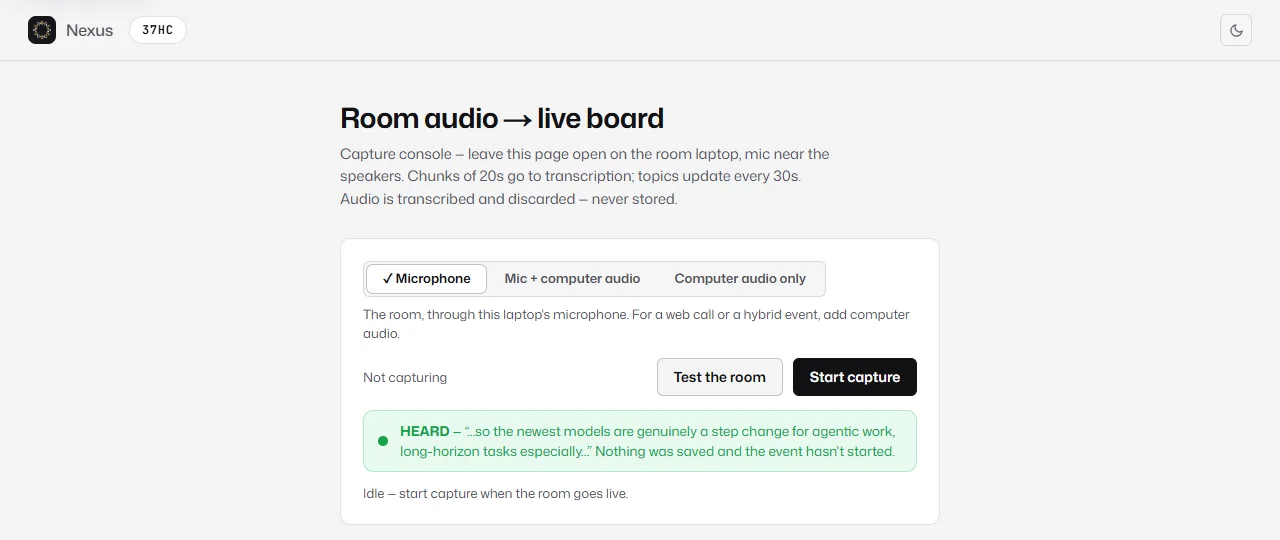
Test the room shows what it heard, word for word. The choice above it is what to capture (see Capturing a web call or hybrid event).- On the capture page you are asked
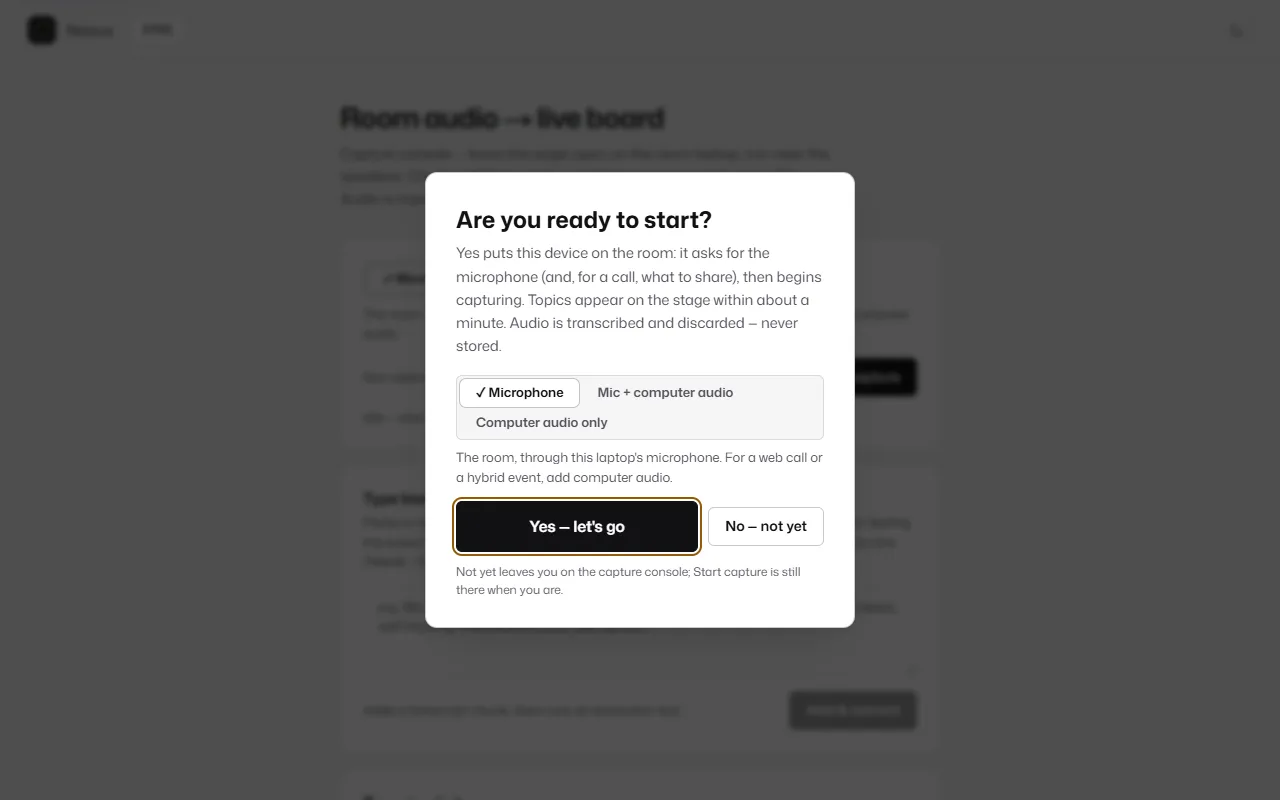
Are you ready to start?. Leave the choice onMicrophonefor a room (the other two are for calls; see below) and pressYes — let's gowhen the room is about to begin. (No — not yetleaves you on the page;Start captureis there when you're ready.) - Allow the microphone when the browser asks.
- The page shows
LIVEwith a red dot and a floatingNexus is listeningbadge with a clock. Topics appear on the big screen within about a minute of people talking.
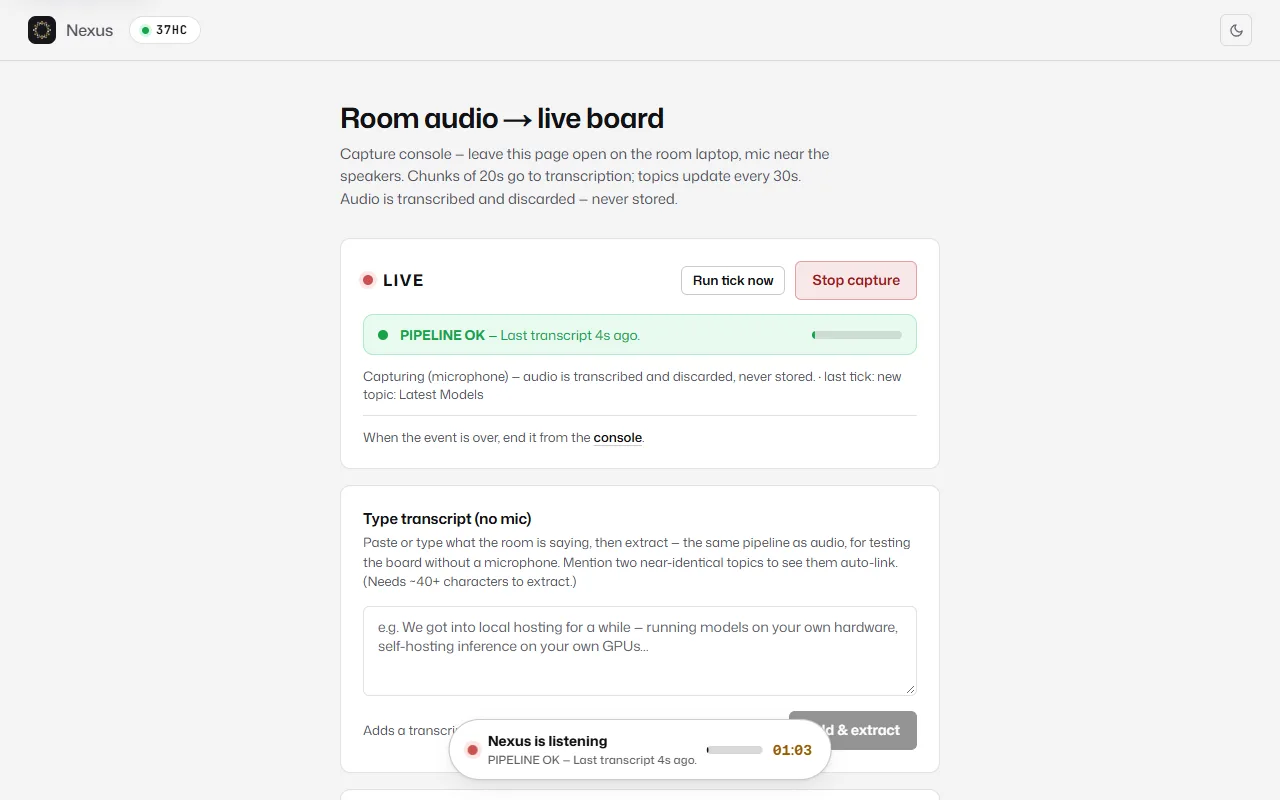
Stop capture, the health line with the microphone level, and the floating badge that stays on screen. Further down, Recent activity lists each transcript fragment and new topic as it lands. Signed in, the line under the status offers End session; on a laptop that isn't signed in (as here) it points to the console.If the tab does get closed, nothing is lost: the event stays live. Open the console (or the event on your dashboard), press ▶ Reopen capture, then Start capture to carry on.
Capturing a web call or hybrid event
When some of the conversation is on a call, the capture page can listen to the laptop's own audio as well as its microphone, so remote speakers reach the board too. Choose what to capture in the Are you ready to start? question, or above Start capture on the page:
- Microphone
- The room only. The default.
- Mic + computer audio
- The room and the call together, for a hybrid event.
- Computer audio only
- Just the call, for a meeting that is entirely online.
- Choose
Mic + computer audioorComputer audio only, then pressYes — let's go(orStart capture).Test the roomuses the same choice, so you can check the call is heard first. - The browser asks what to share. Pick
Entire screen(for a desktop app like Zoom or Teams, on Windows) or the tab the call is in, and turn on the audio switch at the bottom (Also share system audio or Also share tab audio). A single appWindowcan't share its sound. - Tell the people on the call that it is being transcribed. They don't see the room's QR code or its consent line.
Checking that capture is working
The capture page tells you in plain words whether the room is reaching the board. Green means fine; amber means keep an eye on it; red means the board is not updating.
- PIPELINE OK
- Everything is working. It shows how long ago the last transcript arrived.
- WARMING UP
- Normal at the start. The first transcript lands within about 30 seconds of speech.
- ROOM QUIET
- The mic is live but hearing no speech. Fine if nobody is talking yet.
- RETRYING
- The Wi-Fi wobbled. Audio is queued and is catching up; nothing is lost unless it keeps failing.
- TRANSCRIBING, NOT EXTRACTING
- Audio is arriving but no new topics for a few minutes. Usually set-up chatter or off-topic talk, not a fault.
- SCREEN MAY SLEEP
- Keep the tab open and the screen awake. If the device sleeps, capture stops.
- MIC IS SILENT
- No sound is reaching the microphone. Check the input device, the mute switch and the level.
- NOTHING TRANSCRIBED / GONE QUIET
- The mic hears speech but no transcript is coming back, so the board is not updating. Check the network.
- TRANSCRIPTION FAILING
- Audio isn't reaching the board. Check the network; if it continues, contact us.
- EXTRACTION FAILING
- Transcripts are arriving but topics aren't being picked out, so the board is stale. Contact us if it continues.
The big screen shows a smaller version at the bottom, so you can check from across the room: LISTENING, MIC SILENT, CAPTURE UNRESPONSIVE, CAPTURE STOPPED or NOT CAPTURING, and the capture laptop's own alarms (TRANSCRIPTION FAILING, EXTRACTION FAILING, NOTHING TRANSCRIBED) so you can see a problem from across the room.
The big screen
The stage page is what the room looks at. It has two views, switched with the buttons at the top: Bubble map (the default) and Marimekko.
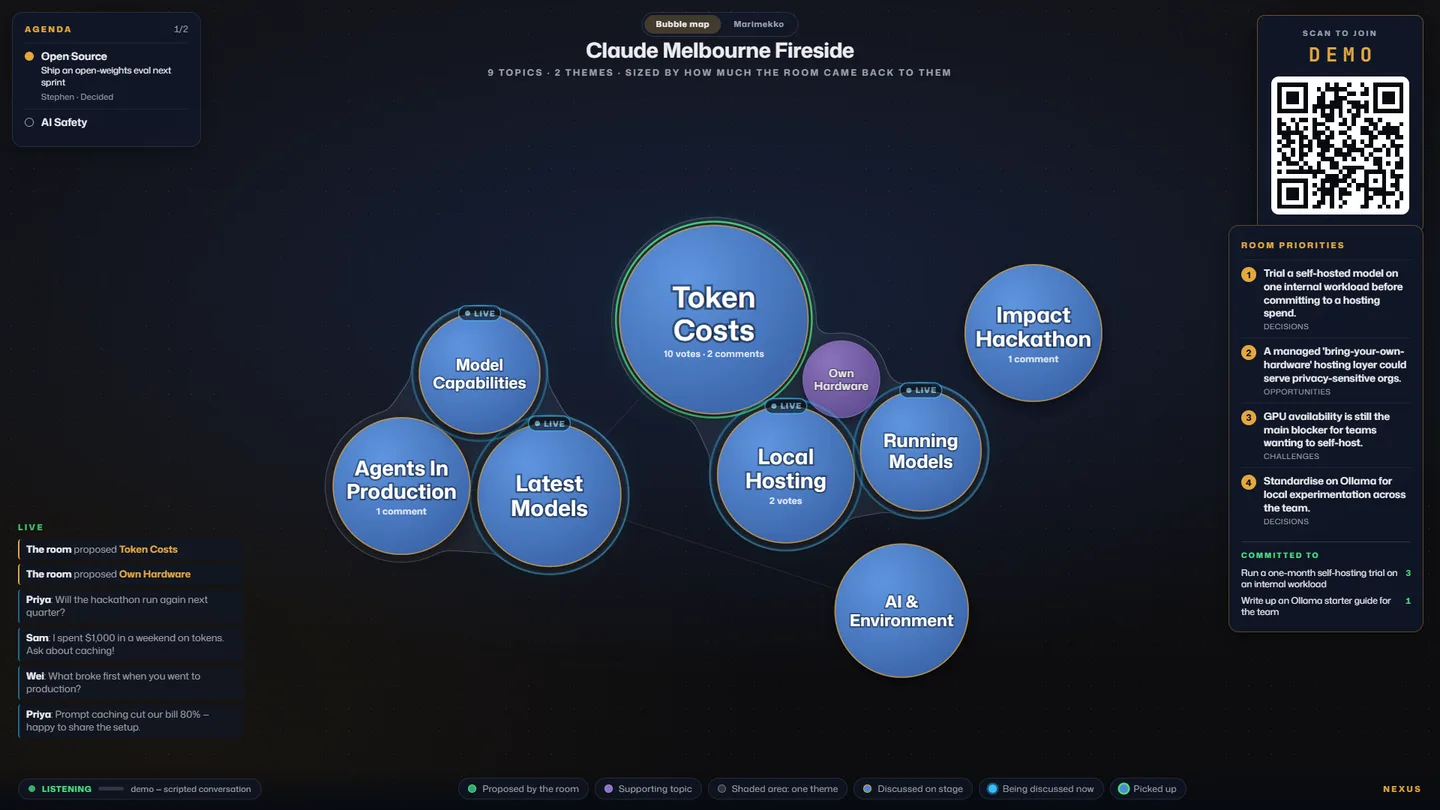
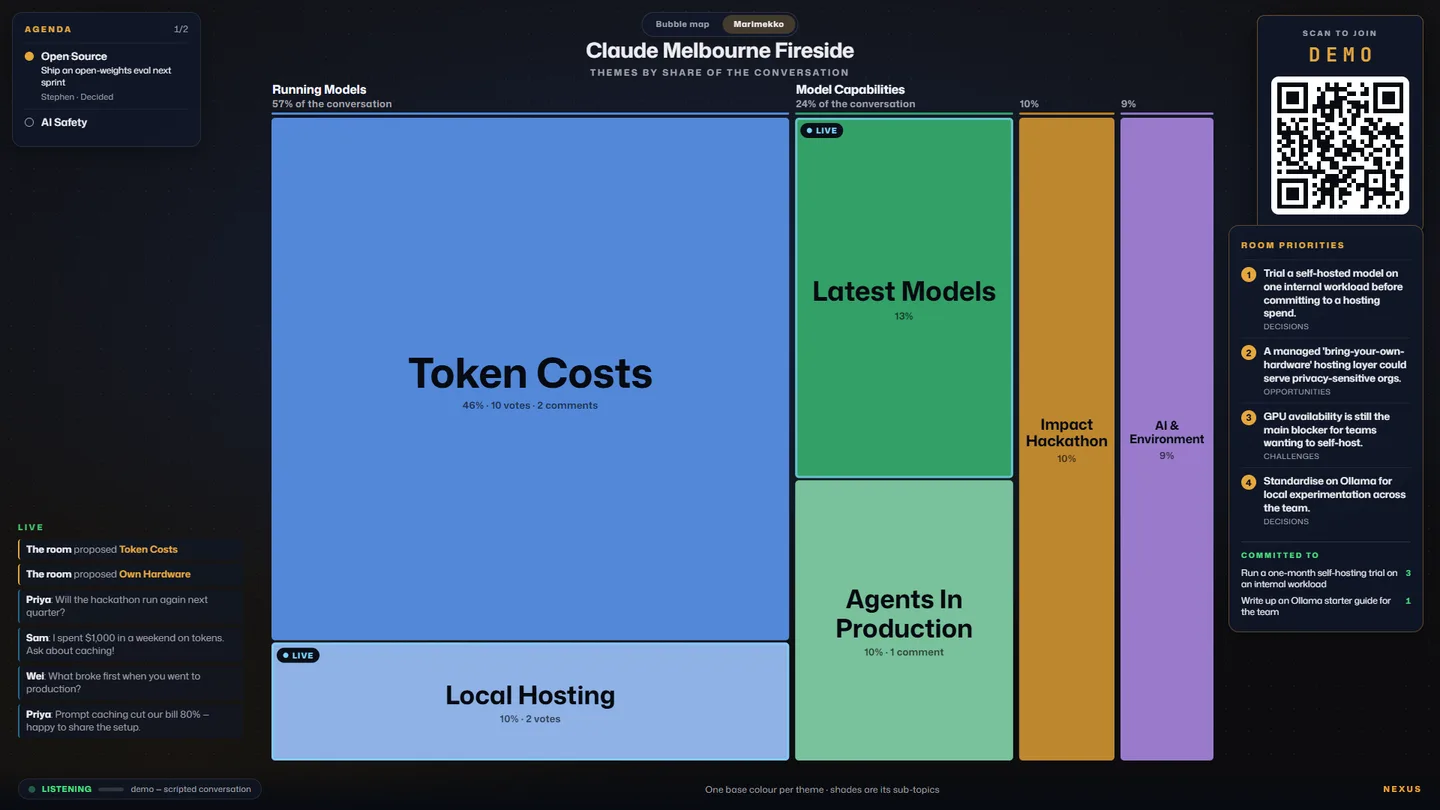
Other topics column.In Bubble map view, the colours and markers mean:
- Discussed on stage
- A topic picked out of the conversation.
- Proposed by the room
- Green. An audience topic the speakers haven't reached yet.
- Supporting topic
- Purple. A near-duplicate linked to a main topic.
- Being discussed now
- A blue pulse. Mentioned in the last 45 seconds.
- Picked up
- A green ring. An audience proposal the speakers went on to talk about.
- Shaded area
- The topics inside one shaded shape belong to the same theme.
- ● HOT
- On a bubble that just had a burst of votes, comments or links.
- ● LIVE
- On a topic mentioned in the last 45 seconds.
- The join panel in the corner always shows
SCAN TO JOIN, the session code and the QR code. - The Agenda panel shows the planned items and their status, if you added an agenda.
- A LIVE feed shows what people are doing as it happens: comments, votes, proposals and topics emerging on stage.
- When the room proposes a topic, or the stage picks one up, a short message appears on screen.
- Once you reveal insights and the room ranks them, a Room priorities panel shows the top of the ranking, with the actions people have committed to underneath.
- Click any bubble or block to open its detail: what the room is saying about it, how it connects to other topics, and its counts.
- After an event, add
?replayto the stage address (/stage/CODE?replay) to watch the board fill up again from the first topic. It is a reconstruction from the final counts, markedREPLAYon screen.
How topics form
You don't need to do anything for topics to appear, but knowing how it works helps you read the board.
- Every 20 seconds, the capture laptop sends the latest audio to be transcribed. The text is kept; the audio is discarded.
- About every 30 seconds, Nexus reads the new text and decides which existing topics were mentioned and whether a genuinely new subject came up. Small talk and logistics are ignored. Labels are one to three words.
- A new topic that means the same as an existing one counts as another mention of it. One that is close but not the same becomes a supporting topic under it. Anything else becomes a new bubble.
- Once enough topics exist, related ones are grouped into themes.
- The board keeps the ten biggest topics in view. Smaller ones are retired, but they come back, with their history, if the room returns to them. A proposal the stage hasn't reached yet is never retired.
Audience proposals are matched the same way. If a proposal is already on the board, it becomes a vote for that topic instead of a duplicate.
The presenter view
The presenter view (/present/CODE) is for whoever hosts or moderates. Anyone with the link can look at it, but answering, spotlighting and editing need an organiser's login.
Questions. Every comment from the audience appears here as a question, unanswered first, then most-voted. For each one you can:
📣 Spotlightit: the question appears full-size on the big screen. Press📣 On screen ✕to take it down.- Mark it
✓ Answered. The person who asked sees “The presenter answered your question” on their phone. ↗ Topic: turn it into its own topic on the board.
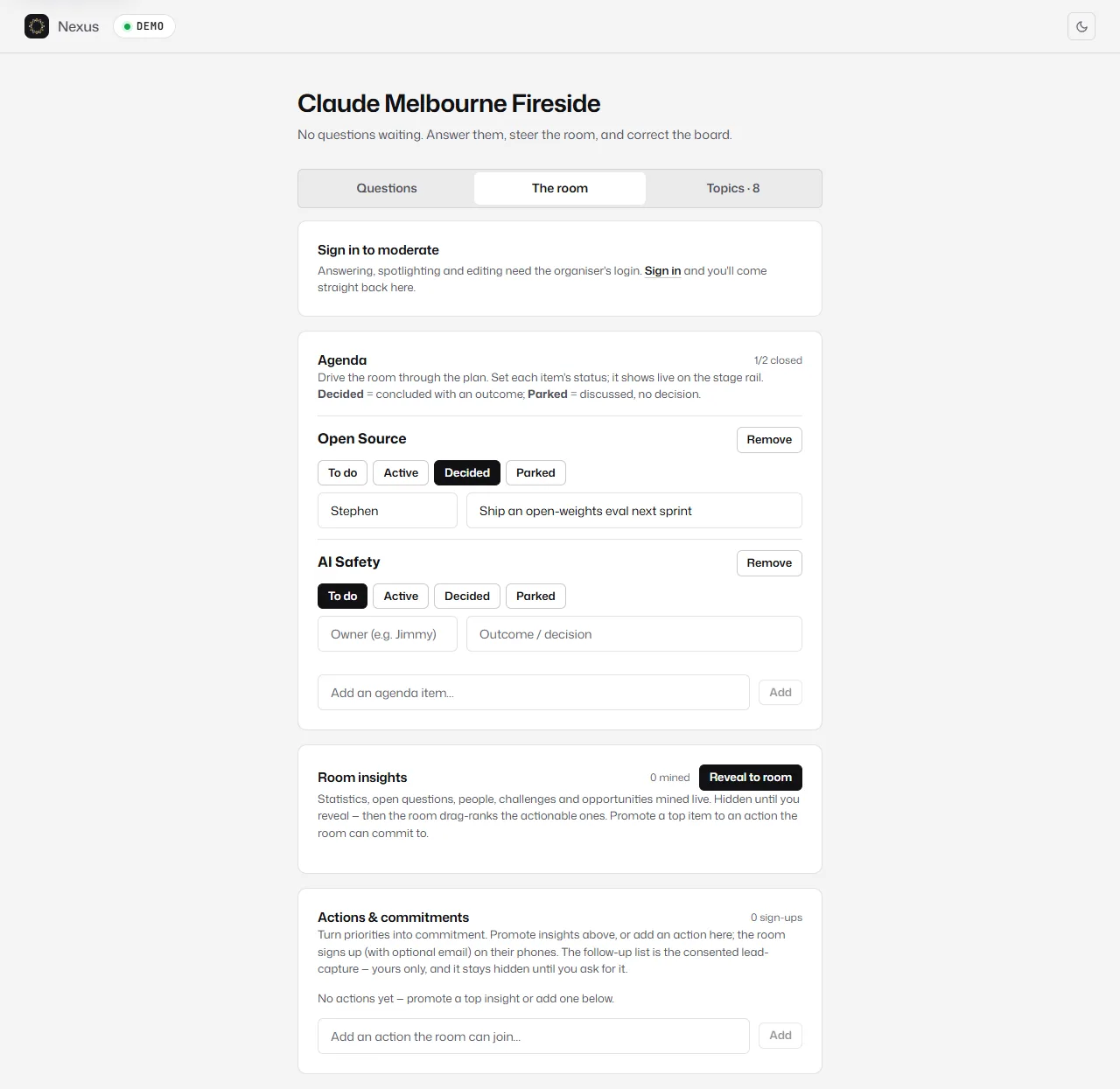
- Agenda: set each item to
To do,Active,DecidedorParked, with an owner and the outcome. It updates on the big screen immediately. - Room insights: statistics, questions, people, challenges and opportunities Nexus has noticed. They stay hidden until you press
Reveal to room; the audience can then rank the actionable ones on their phones. - Actions & commitments: turn an insight into an action (
→ Action) or add your own. The audience can sign up to help, optionally leaving an email.Follow-up listshows who signed up; only you see it.
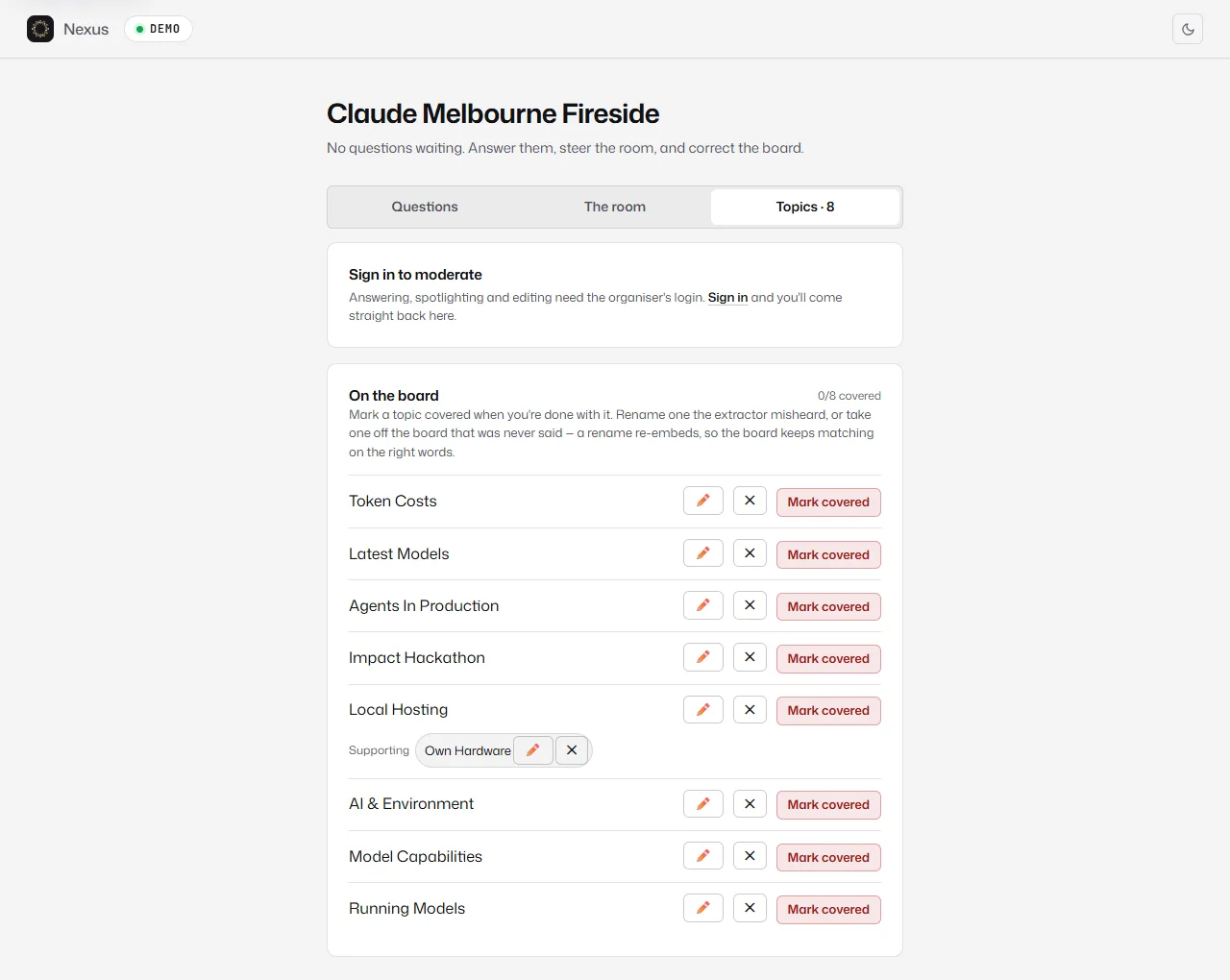
- Use the pencil button to rename a topic Nexus misheard (Enter saves, Escape cancels). Renaming keeps future matching on the right words.
- Use the
✕button to take a topic off the board that was never actually said. - Press
Mark coveredwhen you're done with a topic.
Moderating the board
The console's Moderation card is the kill switch, for the rare topic that shouldn't be on screen, and for joining two topics that mean the same thing when Nexus hasn't linked them.
Hideremoves a topic from the board.- To merge, choose
Merge this…, then…into this, then pressMerge. When merging a room topic with a stage topic, keep the room one.
Names, comments and proposals from phones are checked automatically before they appear (see What's checked before it appears).
No microphone? Type it instead
If the room has no usable microphone, the capture page has a Type transcript (no mic) card. Paste or type what is being said and press Add & extract. It goes through exactly the same process as audio, and it starts the event just as capture would. It needs about 40 characters or more at a time.
Ending the session
- On the capture page, press
End session, thenYes, end it. Capture stops, the last minutes are sent, and the board freezes. The recap page stays available. - Or end it from the console (
End sessionon theThis event is livecard) or from the dashboard's featured event.
After the end, phones show “here's what the room talked about” instead of the live view, and registration closes. Ending is final: the board stops changing, the audience can no longer propose, comment or vote, and capture can't be restarted (a capture laptop left running stops by itself within a couple of minutes). To carry on, start a new event.
Not going ahead? A draft's console has Cancel event at the bottom; confirm with Yes, cancel it. Registration closes and it can't be reopened. To remove it altogether, delete it from the dashboard.
5The audience experience
What people in the room see and can do on their phones. Useful for explaining Nexus from the stage.
Joining
People scan the QR code on the big screen, or go to meet-nexus.com/start and type the session code.
- They enter a first name or initials under
What should we call you?and pressJoin. - That's it: no email, no account and no app. Their name is remembered for this event on this device.
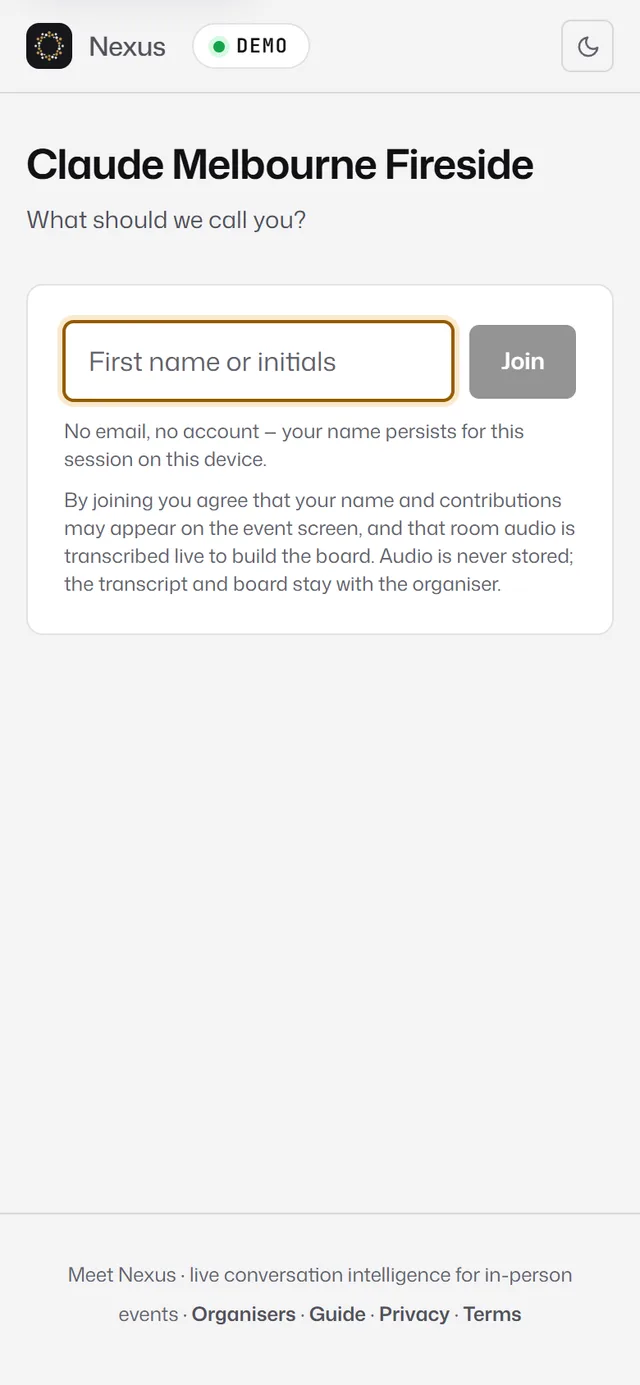
If they join before capture starts, the page says the session hasn't started yet and comes to life on its own.
The room tab
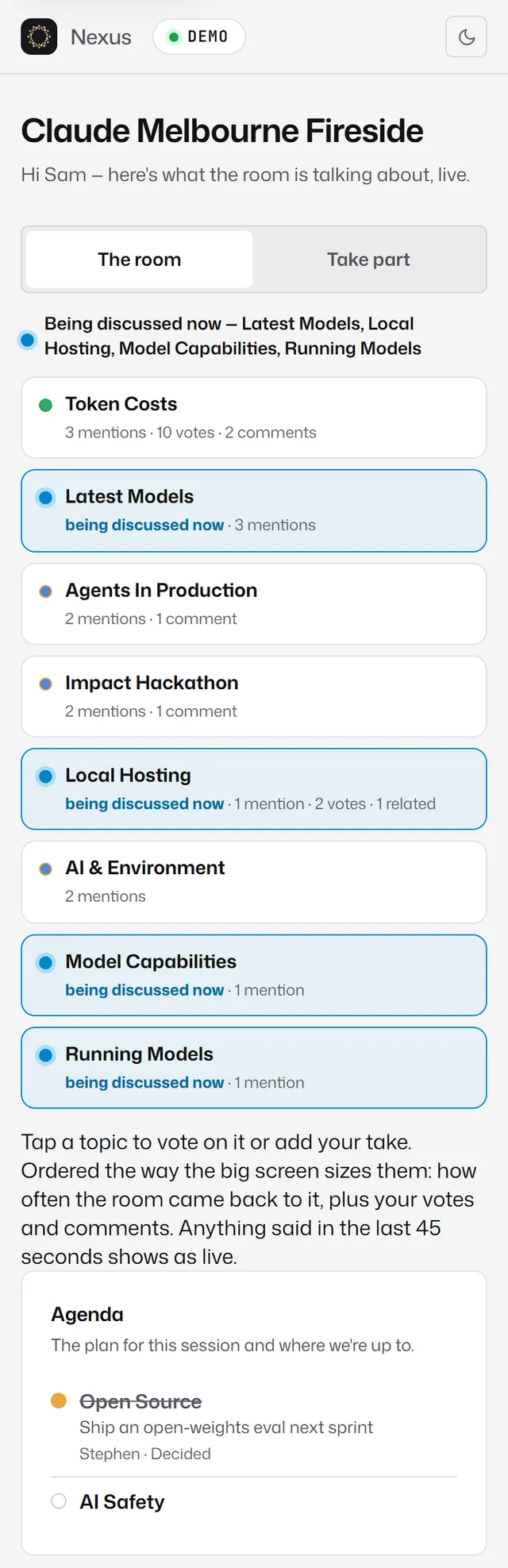
The room is a read-only version of the big screen for their phone: every topic, in the same order the big screen sizes them, with its mentions, votes and comments, and what is being discussed now. The agenda is underneath.
Taking part
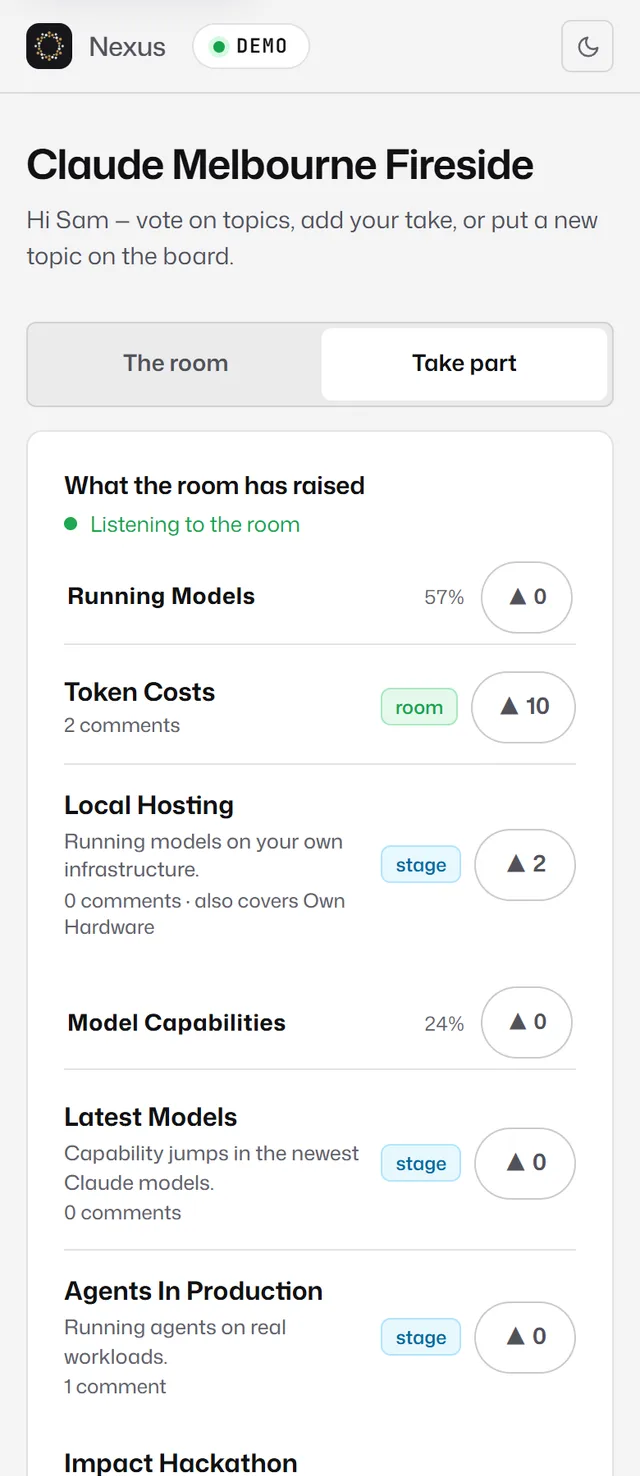
- Vote: tap ▲ on any topic. Votes make topics grow on the big screen.
- Comment or ask: open a topic and use
Add a comment or question…. Comments show on the presenter's question list, and others can vote on them. - Propose a topic: under
Propose a topic, write what the room should talk about and pressAdd. If it's already on the board, the proposal counts as a vote for it instead. - Priorities: once the presenter reveals insights, people can put them in order. Their order is their vote.
- Get involved: once the presenter adds actions, people can sign up with
I'm in, optionally leaving an email for the summary and follow-ups.
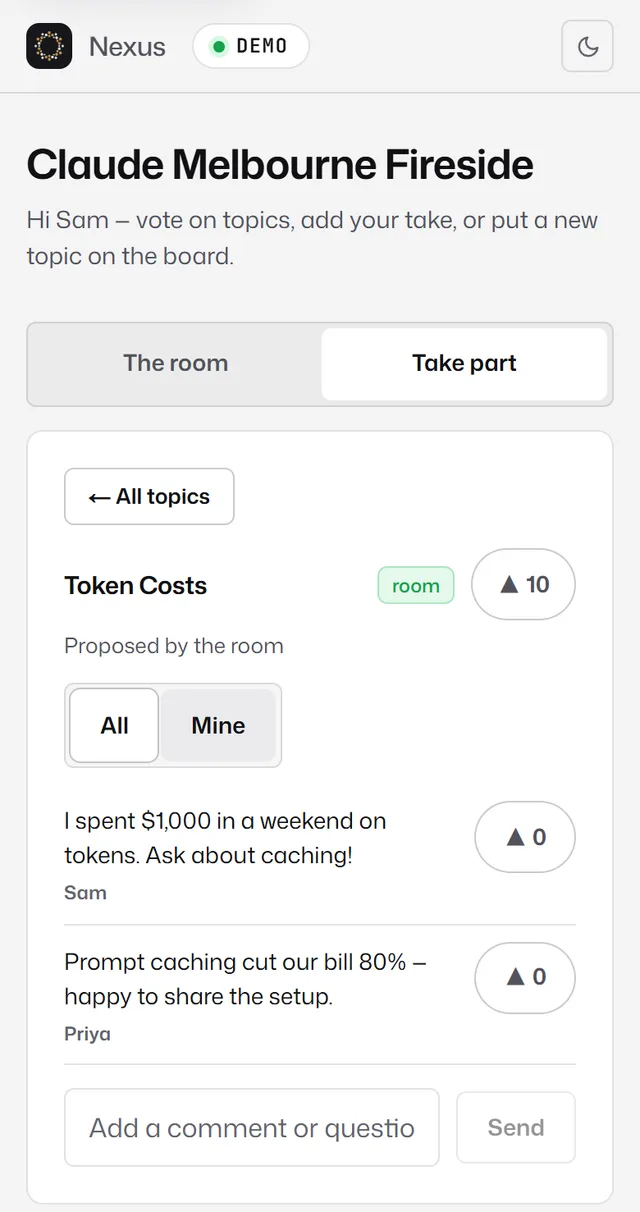
People get a notice on their phone when the presenter answers their question, and when their question is on the big screen.
What's checked before it appears
Names, comments and proposals are checked automatically before they go on screen. Hate speech, harassment, sexual content, graphic violence, private personal details, spam and trolling are refused, with a message asking the person to reword it. Controversial or critical topics are allowed: the check is there to keep the screen safe, not to keep it bland.
Because a whole room usually shares one Wi-Fi connection, the limits on joining, commenting and proposing are generous. If a room hits them, people see “give it a moment” and can try again shortly.
6After the event
The recap page, the AI write-up, the take-home document, and sending the recap to the people who came. Start with the step-by-step below; the sections after it explain each step in detail.
Step by step: from the last word to the recap email
The whole journey after an event, in order. Steps 1 to 4 apply to every event; step 5 is for scheduled events with a guest list.
- End the session. On the capture page press
End session, thenYes, end it. The board freezes and the event moves toPaston your dashboard. (See Ending the session.) - Generate the write-up. Open the recap page:
Recapon the event's row in your dashboard, orRecap page · after the eventin the console'sSurfaces. PressGenerate summaryand wait up to a minute. - Read it yourself, and regenerate now if you want to. Your summary is on the recap page straight away. If it misses the mark, press
Regenerate summarybefore our read, not after: a write-up regenerated after we have read it has to be read again before it can be emailed. - Wait for our final read. While Nexus is in testing we read every write-up before it leaves the room, usually within 24 hours. Until then the recap page and your dashboard say “Write-up with us for a final read”, and anyone else who opens the recap link sees “Coming soon”. When it's done you get an email headed Your write-up is ready.
- Hand it out. Download the take-home PDF with
Download PDF(on the recap page, or on the event's row in your dashboard once you open it), and the transcript withTranscript (PDF)underExporton the recap page. To email it to the people who came, use the console'sSend the recappanel: tick who attended inGuests, chooseThe summary onlyorThe summary and the full transcript, confirm, and send. (See Sending the recap to attendees.)
The recap page
Every event has a recap page (/harvest/CODE). Open it from the console's Surfaces list (Recap page · after the event) or with Recap on the event's card in your dashboard.
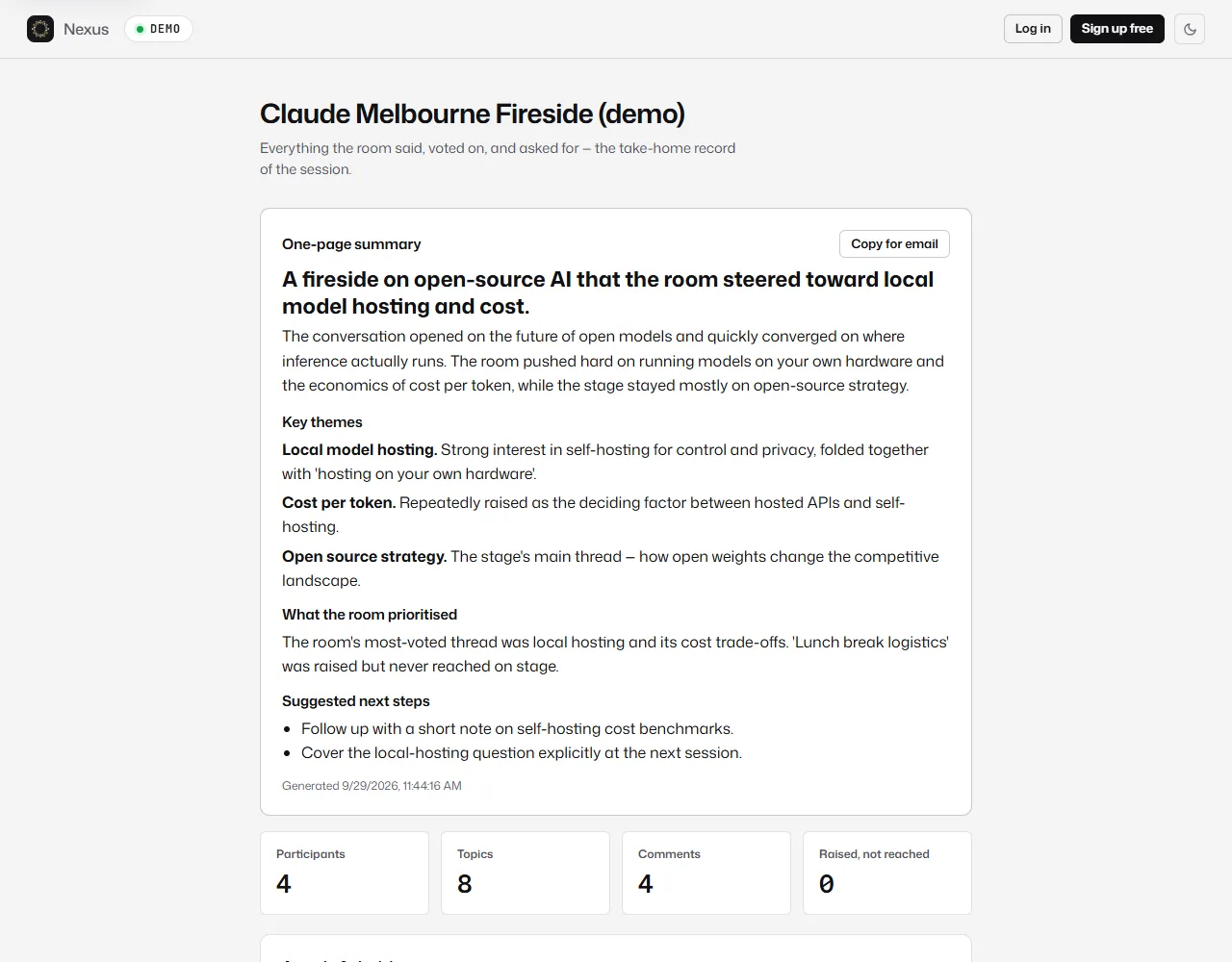
- One-page summary: the headline, an overview, key themes, what the room prioritised and suggested next steps.
Copy for emailcopies it as plain text. - Participants, Topics, Comments and Raised, not reached: the topics the room asked for that the stage never got to, worth covering next time.
- Agenda & decisions, How the conversation unfolded (a replay of the turning points), Insights the room surfaced (ranked by the room's votes), Actions the room committed to (tick them off as they're done), and Conversation by theme.
- Each topic, with its mentions, votes and comments.
- Full transcript, under
Show. - Raised by the room, never reached on stage, with
Plan the next one(organisers only). It creates a draft event called “(this event's title) — next” with those topics as its agenda, and opens its console. - Export (organisers only):
Topics (CSV),Actions (CSV),Transcript (text)andTranscript (PDF). The guest list has its ownExport the list (CSV)in the console.
Sharing it with someone outside your organisation. Press Share on the recap page (or Share the recap in the console, or Share on the event's row in your dashboard). You're asked whether to include the full transcript: No, summary only or Yes, with the transcript. You then get a private link to copy and send. Whoever has the link can read the recap without an account, even when the page is set to Only your organisation; they never see the insights or the names behind comments. It is the same link each time you share that way, until you press Turn this link off. If the write-up is still with us for a final read, the dialog tells you, and you can share as soon as it's released.
Generating the write-up
- On the recap page press
Generate summary(orGenerate recapon the event's card in your dashboard). - Nexus reads the whole transcript and writes the one-pager. It can take up to a minute.
- If it fails, press it again.
Regenerate summarywrites a fresh version and replaces the old one.
An unclaimed free session covers the live board only: sign up and claim it from the console and the write-up can be generated from its transcript.
The take-home document
The take-home document is a designed PDF of the write-up that you can hand out or attach to an email. Download it with Download PDF on the recap page, or on the event's row in your dashboard (open the row under Past). Generate the summary first: the document is built from it.
The transcript is a separate PDF: Transcript (PDF) under Export on the recap page. It is the unedited text of what was picked up in the room, with a time marker every couple of minutes, and it doesn't say who was speaking.
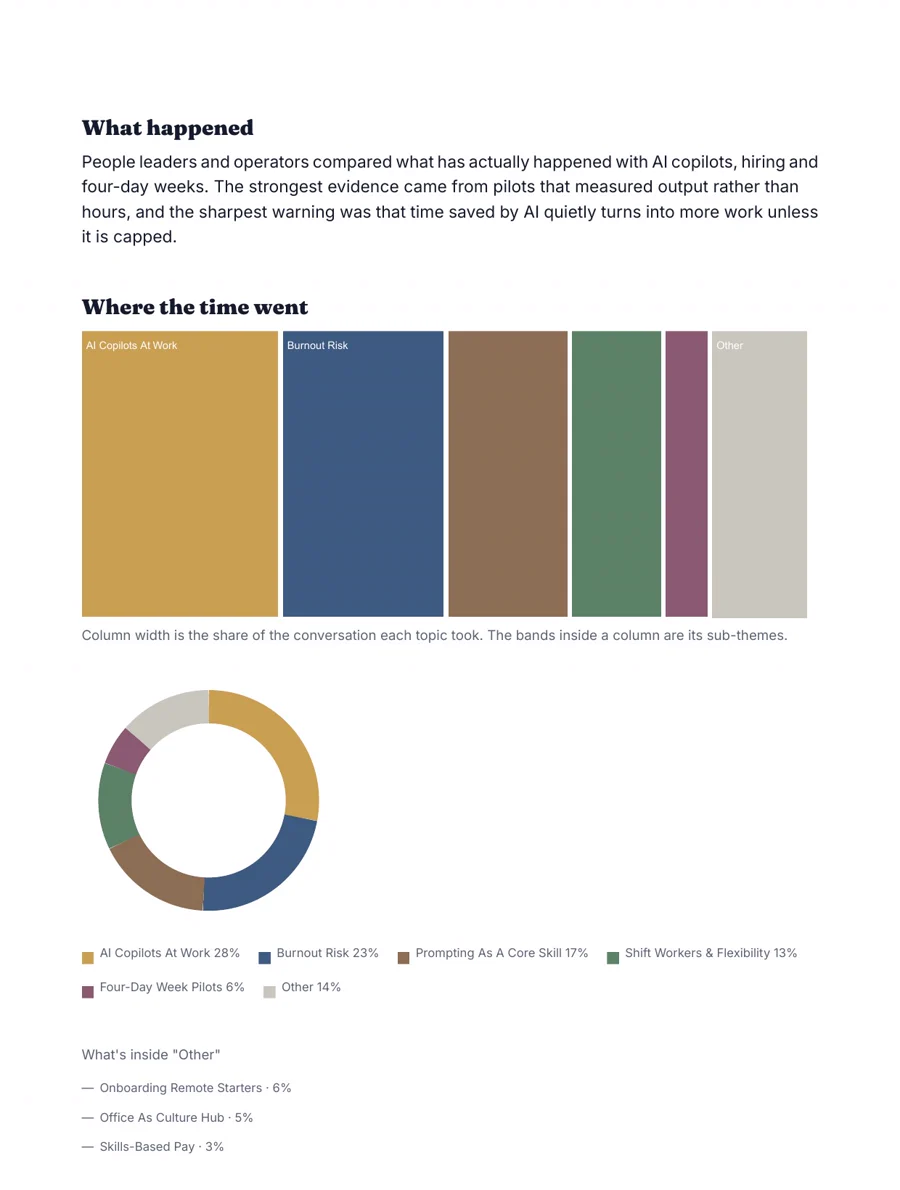
It contains: what happened, where the time went (with charts), the threads that ran through the session, what the room prioritised, suggested next steps, what was discussed, what the room surfaced and what was committed to.
It follows the Chatham House Rule: no attendee is named, action owners are left out, and nothing is attributed to anyone. It is built fresh each time you download it, so it always matches the current write-up.
Our final read
While Nexus is in testing, someone at our end reads what the AI made of every event before anything leaves the room. That covers the take-home document, attendee introductions and the recap email. Your own recap page, board and summary are never held for you, but anyone else who opens the recap link sees “Coming soon” until the write-up has been confirmed. Write-ups are usually ready within 24 hours of the event, and we email you (“Your write-up is ready”) as soon as it is.
While a write-up is with us, the recap page and your dashboard say “Write-up with us for a final read”, and Download PDF and Send the recap wait. If you regenerate the summary after we have read it, the recap email needs reading again (the panel says so); the PDF stays available.
Sending the recap to attendees
You can send once the write-up has had our final read. Until then the panel shows the same “final read” message instead of a Send button.
For scheduled events, the console's Send the recap panel emails the write-up to the guests who actually came: a short summary with the full document attached, and the transcript as a second PDF if you choose. Replies come to you. Each guest gets it once.
- Mark who came. In
Guests, tick each person who attended, or useMark attended from a listto paste their emails. There is deliberately no “mark everyone” option. People in the room who left an email on their phone can be added from the same panel, already ticked. - Check the count. The panel says how many attended and haven't had the recap.
Show wholists them. - Choose what to send.
The summary onlyis the default.The summary and the full transcriptadds the transcript as its own PDF: every word the room picked up, unedited and not attributed to anyone, so only choose it if the room expected the whole conversation to be shared. - Confirm. Tick the box confirming these people attended and that your organisation is sending them the recap.
- Send. Press
Send the recap to N people(Send the recap and transcript to N peopleif you added it). It sends in batches; keep the page open. You canPauseandContinue sendinglater.
- The email contains the headline, what happened, the threads and what was committed to, with the full write-up attached as a PDF (and the transcript as a second PDF, if you chose it). It leaves out suggested next steps, action owners and anyone's name.
- Every email has an unsubscribe link, and people who have unsubscribed are skipped.
- Anyone it couldn't reach is listed; if they're still ticked as attended, they're included in your next send.
Quick sessions name themselves
A quick session starts with a placeholder name. When you end it, Nexus names it from the topics and the headline, never from the raw transcript. Rename it any time with Rename in the console, or click its name on the stage screen (Enter saves, Escape cancels) while signed in. Once you have, Nexus won't rename it again.
Deleting an event
On the dashboard, open the event's card and press Delete. The dialog lists everything that will go: topics, comments, people, insights, actions, the transcript, published recaps and the guest list.
- There is no undo and no backup.
- For an event that captured anything or has guests, you type its session code to confirm, then press
Delete forever. - A running event can't be deleted: end the session first.
7Your organisation
The dashboard and the other pages in the sidebar.
The dashboard
Events is your home: “Everything you've run.” It shows the Quick start and Schedule tiles, a search box, filters (All, Upcoming, Drafts, Past, No recap) and your events grouped into upcoming, drafts, live now and past. Drafts are events that never started and have no date, or whose date has passed: open one to set a new date, or delete it.
- The featured event at the top is whatever is live, or else the next one coming up, with a readiness check (date set, agenda added, guest list) and buttons to set it up, open the capture device or the stage. While it is live:
Open console,Reopen capture, the stage, the presenter view andEnd session. - Each event card has the actions you need at that stage: set up, stage and capture before; recap, download and end session after.
- If some events were never ended, a card offers to end them all at once.
Organisation, Team, Billing and Profile
- Organisation
- Your organisation's name (owners can rename it), its handle, and your plan and members.
- Team
- Who is in your organisation, their roles, and invites. See Inviting your team.
- Billing
- Your usage: events and quick sessions this month, and your recent events. Nexus is free; there is no card and no subscription.
- Profile
- Your name and password. To change the email you sign in with, contact us.
8Privacy and your data
What Nexus keeps, what it doesn't, and who can see what. The privacy policy at /legal/privacy is the full statement.
What is kept
- Audio is never stored. It is transcribed in short chunks and discarded immediately; it is never written to disk.
- The text transcript is kept, with the topics, votes and comments. It belongs to the organisation that ran the event.
- The transcript doesn't record who said what: there is no speaker identification.
- Audience members give a first name or initials, and an email only if they choose to (for example to sign up for an action).
- Everything is kept until your organisation deletes the event. Deleting it removes it permanently.
Names and the Chatham House Rule
The take-home document and the recap email name no attendees. The recap page shows the names behind comments only to your own organisation.
Guests' details are only shared with other guests if they tick “introduce me to other guests” themselves, and their email address is never shared. You are responsible for telling the room it is being captured; the audience consent text on every phone says so too.
9Troubleshooting
The problems people most often hit, and what to do. If none of this helps, get in touch.
Capture and the board
- “Microphone unavailable”
- The browser was refused the microphone. Allow it in the address bar's site settings, check no other app is using it, and press
Start captureagain. - Nothing appears on the big screen
- Check the capture page says
PIPELINE OKorWARMING UP. The stage saysNOT CAPTURINGif capture was never started. Topics take about a minute after people start talking. MIC IS SILENT- Check the input device in the laptop's sound settings, the mute switch and the microphone level.
- The board stopped changing
- If the capture page shows
RETRYING, the network dropped and audio is catching up. If it showsGONE QUIETor a failing message, check the network. The board keeps showing the last good state rather than going blank. - A topic is wrong
- Rename it or take it off the board from the presenter view's
Topicstab, orHideit from the console. - The laptop went to sleep
- Wake it and look at the capture tab. If it isn't showing
LIVE, pressStart captureagain. Turn off sleep in the power settings for the rest of the session.
The audience
- “Session not found”
- The code was mistyped. Codes are four characters; letters and numbers that look alike (such as O and 0) are never used.
- “This session hasn't started yet”
- Capture hasn't started. The phone page comes to life on its own once it does.
- “That can't go up on the screen”
- The automatic check refused the text. Rewording usually fixes it.
- “Give it a moment”
- A lot of people did the same thing at once from one Wi-Fi network. Wait a few seconds and try again.
Accounts and sign-in
- “You already have a Nexus account with that email”
- Free sessions are for people without an account. Log in and set the event up from your dashboard.
- “That email has already had its free session”
- Sign up (it's free) to run more events.
- “We can't find the key for session CODE in this browser”
- A free session is held in the browser that started it. Open the emailed link on that device, or sign up anyway and contact us to move the event across.
- Password refused
- Use at least 10 characters, and not one that has appeared in a data breach.
- No reset email
- Check spam. If you signed up with Google, use
Continue with Googleinstead. If you unsubscribed from Nexus emails, contact us. - “Sign in at /login to take organiser actions”
- You're looking at an organiser page while signed out, or signed in with an account that doesn't run this event.
Getting help
Email hello@fordcastle.com and we'll sort it out. Include the session code if it's about a particular event.